
How to assign and edit key commands
Add, edit, remove, or reset KTPlayer's key command assignments.
Before you begin
An activated show file is required to test key commands.
Add or edit key commands
- Open preferences from the menu bar: KTPlayer → Preferences. The Preferences window opens to the Devices tab.
- Click the Assignments tab. The assignments table appears.
- Click anywhere in the row of the command you want to configure. The row highlights in blue.
- Below the table is the assignment editor area. In the Key row, click Learn. The button highlights and the input field prompts 'Waiting...'.
No need to clear first
If a key command already exists, you don't need to press Clear before learning a new one — learning overwrites it.
- Press the key you want to assign on your Mac's keyboard. The key assignment updates to the selected key.

Remove key commands
- Open preferences from the menu bar: KTPlayer → Preferences. The Preferences window opens to the Devices tab.
- Click the Assignments tab. The assignments table appears.
- Click anywhere in the row of the command you want to clear. The row highlights in blue.
- Below the table is the assignment editor area. In the Key row, click Clear. The key assignment updates to None.
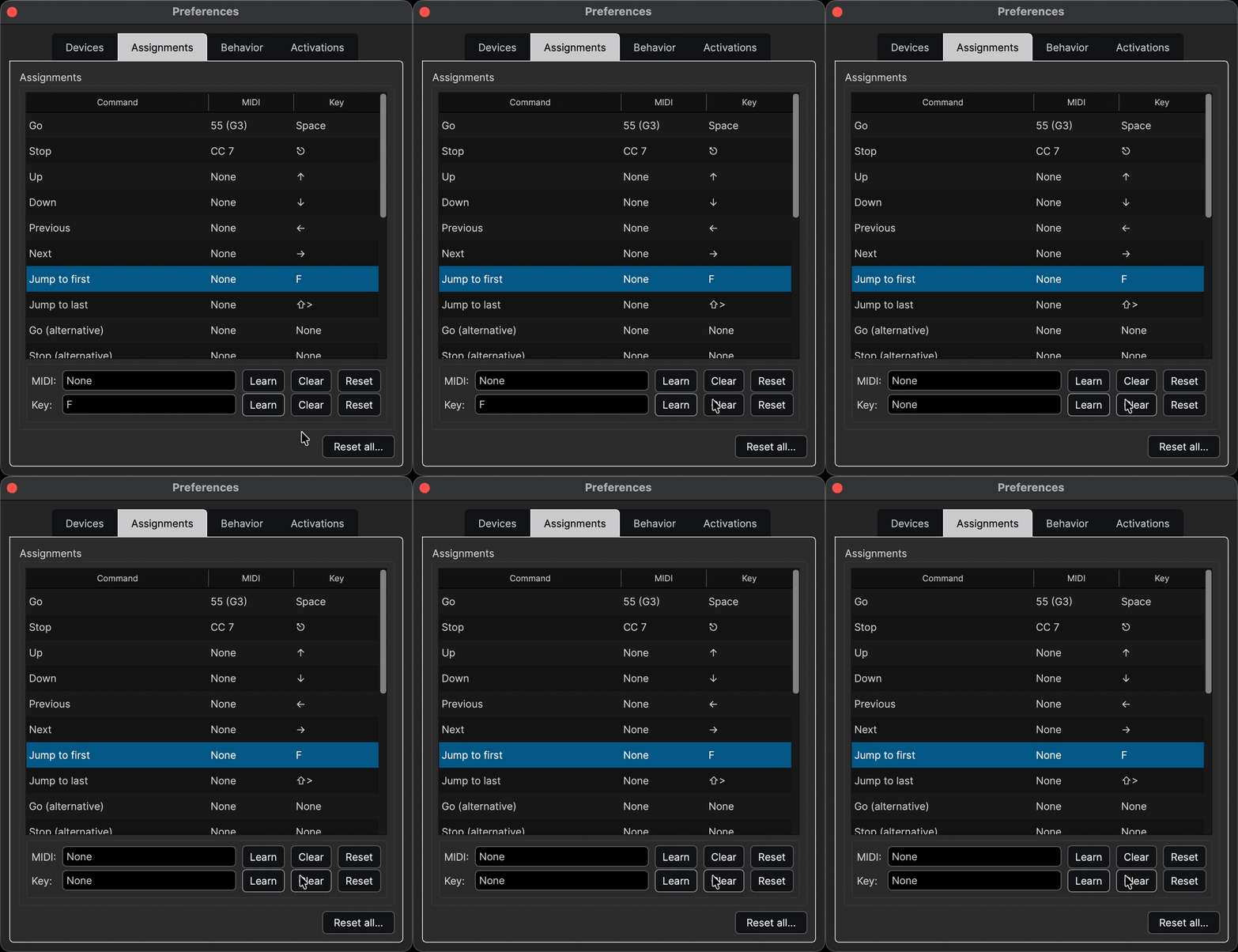
Table may not refresh
The assignment table may not visibly update automatically. To confirm the change, select another row in the table, it will update.
Reset a single command to default
- Open preferences from the menu bar: KTPlayer → Preferences. The Preferences window opens to the Devices tab.
- Click the Assignments tab. The assignments table appears.
- Click anywhere in the row of the command you want to reset. The row highlights in blue.
- Below the table is the assignment editor area. In the Key row, click Reset. The key assignment returns to its default.

Reset all commands to default
- Open preferences from the menu bar: KTPlayer → Preferences. The Preferences window opens to the Devices tab.
- Click the Assignments tab. The assignments table appears.
- Click Reset all in the bottom-right corner of the Preferences window. All key and MIDI assignments return to their defaults.

Reset all is permanent
Reset all cannot be undone.
For a full list of default key commands, see Reference: Default key commands →