
MIDI Input
What MIDI messages KTPlayer listens to, how it reads them, and what each can be assigned to. Use this when configuring a controller, pedal, or Go button in Preferences > Assignments.
Supported message types
KTPlayer accepts the following MIDI message types as inputs that can be assigned to commands. Anything not on this list is ignored.
| Message type | What KTPlayer reads | Typical use |
|---|---|---|
| Note On | Note number + velocity. Triggers on any velocity greater than 0 | Go buttons, drum pads, keyboard keys. |
| Control Change (CC) | CC number + value. |
Footswitches sending CC, expression pedals. |
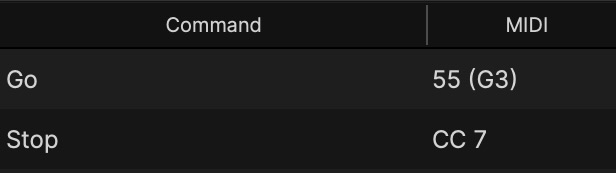
KTPlayer displays the assigned MIDI message in the Assignments table. In the example below:
- Go is assigned to Note On for Note 55 (G3).
- Stop is assigned to Control Change 7
Message types that KTPlayer can't use
These can't be assigned to a command. If a controller sends only one of these, it can't drive KTPlayer:
- Note Off: treated as the end of a Note On, never assignable on its own.
- Program Change: not read for cue selection or anything else.
- System Exclusive (SysEx): not supported. A device that sends only SysEx won't work; set it to send Note On or CC instead.
Channel filtering
KTPlayer listens on all MIDI channels. There's no per-assignment channel filter: a matching message fires its command regardless of which channel it arrives on.
You don't need to match your controller's output channel to anything in KTPlayer. The flip side: two controls sending the same note or CC number on different channels will both fire the same command, so give each control its own note or CC number if you want them independent.
Velocity behavior
For Note On messages:
- KTPlayer triggers the assigned command when velocity > 0. Most controllers send a non-zero velocity for a hit and zero for a release.
- The velocity value isn't sent to the command. A soft tap fires the same Go as a hard hit.
Multi-port input
If you have multiple MIDI devices connected, KTPlayer can listen to any device that has Listen checked in Preferences > Devices > MIDI devices.
- Each device can be enabled or disabled individually.
- An assignment doesn't track which device sent the message: any device sending the matching message triggers the command.